
OTTfeed allows you to insert ad breaks into your video content in two different ways. You can add ad breaks to individual videos or apply global ad breaks across your entire channel.
1. Ad breaks for individual videos
Use this method when you want specific ad break timing for a single video.
- Go to the video detail page.
- Locate the Ad Breaks text field.
- Enter your ad break timestamps using the following format: hh:mm:ss
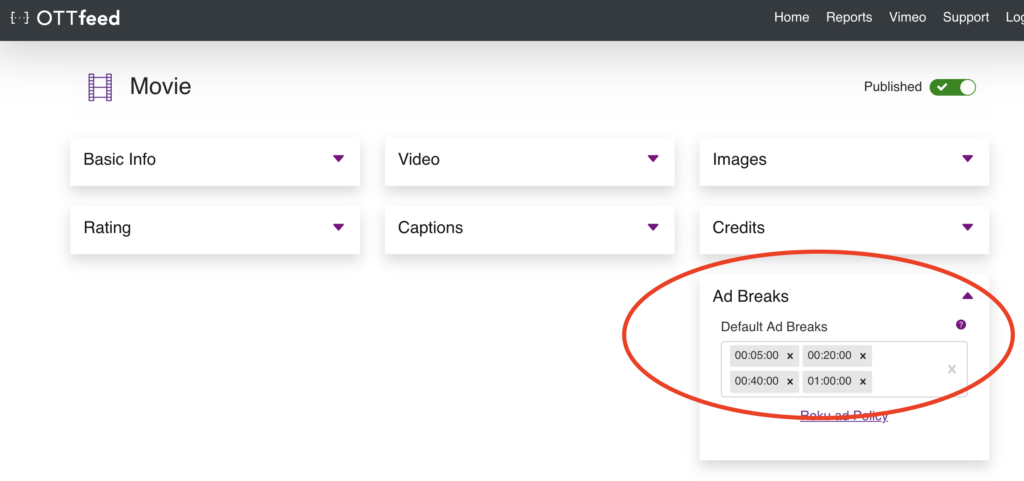
Examples:
00:00:00adds a pre-roll ad.00:20:00adds a mid-roll ad at 20 minutes.00:45:00adds another mid-roll ad at 45 minutes.
- Save your changes.
- Make sure the video is marked as Published.
2. Global ad breaks
Use this method when you want ad breaks applied across all content in your channel.
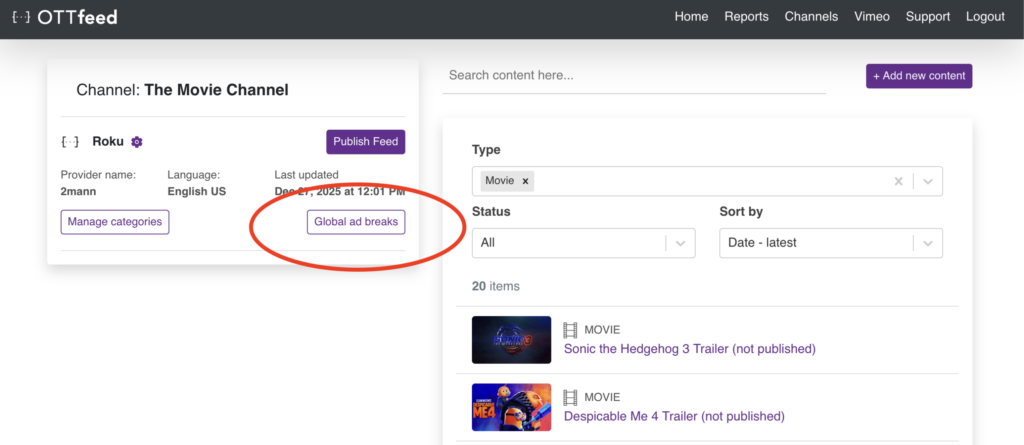
- From the home page, click the Global Ad Breaks button.
- In the Ad Breaks in the Feed dropdown, choose one of the following options:
- a. Global Ad Breaks + Content Ad Breaks
Enables both global ad breaks and per-video ad breaks. - b. Global Ad Breaks Only
Disables all per-video ad breaks and enables only global ad breaks. - c. Content Ad Breaks Only
Disables all global ad breaks and enables only per-video ad breaks. - d. No Ad Breaks
Disables all ad breaks.
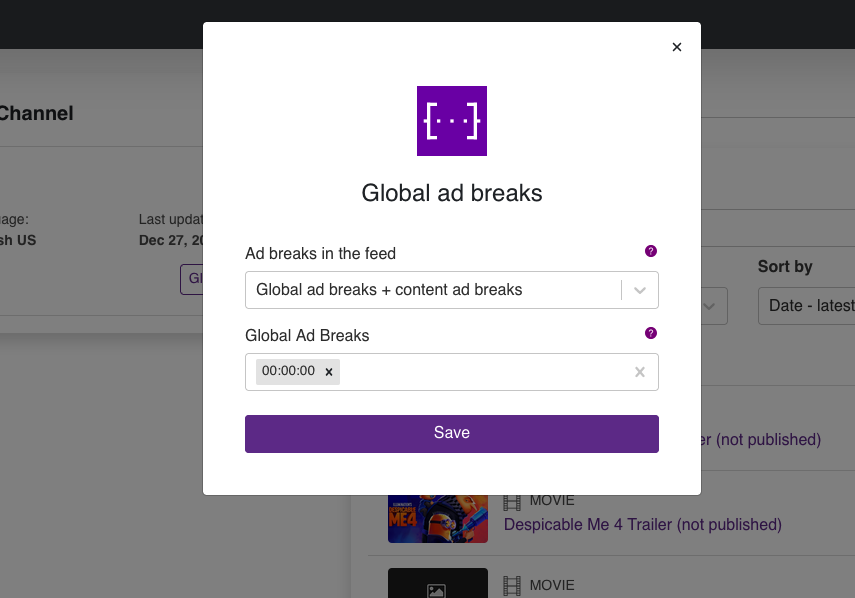
- If you select option a or b, enter your global ad break timestamps in the text field using the same hh:mm:ss format.
- Click Save.
Publish your changes
After adding your ad breaks, whether per video, global, or a combination of both, click the Publish Feed button to apply and publish your latest changes.